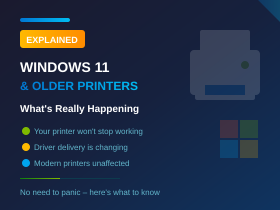
Is Windows 11 Dropping Support for Older Printers?
You may have seen headlines suggesting that Windows 11 is “dropping support for millions of printers”. That makes for good clickbait, but it is not the full story.
Microsoft is not suddenly making older printers unusable. What is changing is how legacy printer drivers are delivered and prioritised, particularly on Windows 11 and Windows Server 2025.
For most businesses, this will be a gradual change rather than an overnight problem. If your printer works today, it will usually keep working. The biggest impact is likely to be when you try to reinstall an older printer, deploy it to a new PC, or move to a newer print server.
Which Versions of Windows Are Affected?
These changes apply to:
- Windows 11
- Windows Server 2025
These changes do not apply to:
- Windows 10
- Windows Server 2016
- Windows Server 2019
- Windows Server 2022
If your environment is still based on Windows 10 or older Windows Server platforms, there is no immediate change to worry about from this policy.
What Is Actually Changing with Printer Driver Support?
Microsoft is phasing out the servicing of older third-party v3 and v4 printer drivers through Windows Update on newer versions of Windows.
That does not mean printers using these drivers will suddenly stop printing.
It means Microsoft is moving away from relying on manufacturer-specific legacy drivers delivered via Windows Update, and towards its built-in modern print stack, including the Microsoft IPP Class Driver for supported printers.
In practical terms, this means:
- existing printers already installed should generally continue to work
- older printers may be less likely to install automatically through Windows Update in future
- some printers may require the manufacturer’s installer when setting them up on a new PC
- modern printers that support current standards are less likely to be affected
This is part of Microsoft’s wider push towards a more secure, standardised, and easier-to-manage Windows environment.
Microsoft’s Printer Driver Timeline
Here is the key timeline for the changes:
| Date | What Happens |
|---|---|
| September 2023 | Microsoft announces v3 and v4 printer drivers are deprecated |
| 15 January 2026 | Microsoft stops publishing new third-party v3/v4 printer drivers to Windows Update for Windows 11 and Windows Server 2025 |
| 1 July 2026 | Windows begins preferring the built-in Microsoft IPP Class Driver over older third-party drivers |
| 1 July 2027 | Non-security updates for legacy third-party printer drivers will no longer be delivered via Windows Update |
The important point is that installed drivers are not being removed from working PCs. This is a long-term transition, not a sudden cut-off.
Will My Existing Printer Stop Working?
In most cases, no.
If your printer is already installed and working, it should continue to work normally. Microsoft is not removing currently installed printer drivers from your devices.
The main change is likely to be felt when:
- setting up an older printer on a brand-new PC
- redeploying printers during a hardware refresh
- rebuilding a machine after failure or replacement
- upgrading print infrastructure to Windows Server 2025
That is when Windows may no longer pull down a new legacy driver as easily as it once did.
What Happens When You Set Up an Older Printer on a New PC?
This is where businesses may notice the difference.
In the past, Windows Update often found the correct manufacturer driver automatically. Going forward, some older printers may need a little more manual setup.
You may need to:
- download the latest available driver package from the printer manufacturer’s website
- use the original installation media if it is still available
- install the printer using Windows’ built-in support for modern print standards instead of a manufacturer driver
For IT teams, the key message is simple: do not assume older printers will always install automatically on new Windows 11 devices.
What Is Mopria and Why Does It Matter?
Mopria is a modern printing standard supported by many major printer manufacturers, including HP, Canon, Epson, Brother and Xerox.
Printers that support IPP and are Mopria-certified can often work with Windows’ built-in printing support, without needing a separate manufacturer driver.
That matters because Microsoft is increasingly steering Windows towards this model.
Instead of relying on a different legacy driver for every printer, Windows can use a standardised built-in driver for compatible devices. This is simpler, more secure, and easier to manage.
For many organisations, this means newer printers are far less likely to be affected by these changes than older ones.
Which Printers Are Most Likely to Be Affected?
The printers most likely to be affected are:
- older printers that rely on manufacturer-specific v3 or v4 drivers
- printers that do not support modern standards such as IPP
- legacy devices that are no longer actively supported by the manufacturer
In general, the older the printer, the more likely it is to require extra attention.
That does not mean you must replace it immediately. It does mean you should plan ahead if the printer is still important to the business.
What Businesses Should Do Now
There is no need to panic, but there are a few sensible steps worth taking now.
1. Review Your Printer Estate
Make a list of the printers your business still relies on, especially:
- older desktop printers
- shared office printers
- specialist label printers
- printers deployed via print servers
2. Check Manufacturer Support
Visit the manufacturer’s website and confirm whether driver packages are still available for your models.
If they are, download and store them safely so you are not relying on them being easy to find later.
3. Identify Business-Critical Devices
Some printers are merely convenient. Others are essential.
If a printer is used for shipping labels, invoices, warehouse paperwork, healthcare records, or any other critical workflow, it is worth checking compatibility now rather than waiting for a future PC rollout to expose a problem.
4. Factor Printing into Refresh Plans
If you are upgrading to Windows 11, rolling out new PCs, or planning a move to Windows Server 2025, make printer compatibility part of that project.
This is especially important if you still run a central print server or have a lot of shared printers across departments.
5. Prefer Modern Printers for Future Purchases
When buying new printers, prioritise models that support:
- IPP
- Mopria
- modern Windows deployment methods
That will make future support much simpler.
A Separate Issue: When Windows Updates Break Printers
It is also worth separating this long-term driver policy from a completely different problem: buggy Windows updates.
From time to time, Microsoft releases updates that accidentally cause printing issues. These are not the same thing as the legacy driver changes.
For example, some Windows updates in 2025 caused issues with Microsoft Print to PDF, where it disappeared or failed to install correctly. Problems like that are update-related bugs, not evidence that Microsoft has suddenly dropped support for printers altogether.
So if a printer stops working immediately after Patch Tuesday, the likely cause is a bad update or print subsystem issue, not this policy change.
Typical troubleshooting still applies:
- check for a newer Windows fix
- restart the Print Spooler service
- remove and re-add the printer
- reinstall using the latest manufacturer driver
- uninstall the recent update if necessary
What About Print Servers?
If you are running Windows Server 2016, 2019 or 2022, these changes do not currently affect you.
However, if you are planning to deploy Windows Server 2025 as a print server, printer compatibility should be part of the project plan.
That is particularly important for businesses that:
- share printers centrally
- deploy printers via Group Policy or scripts
- rely on legacy multifunction devices
- use older manufacturer-specific printer drivers across multiple departments
Before upgrading a print server, it is worth checking whether your printers:
- still have supported driver packages from the manufacturer, or
- can work with modern standards such as IPP and Mopria
The Bigger Picture: Why Microsoft Is Doing This
Microsoft’s goal here is not to make printing harder. It is to make Windows more secure and easier to support.
Legacy third-party drivers have long been a source of:
- security risk
- driver conflicts
- print instability
- deployment complexity
By moving towards standardised, built-in print support, Microsoft is reducing reliance on older components that are harder to secure and maintain.
This follows the same pattern as other Microsoft changes where older technologies are gradually retired in favour of safer and more manageable alternatives.
Quick Reference
| Situation | Recommended Action |
|---|---|
| Existing printer is already working | Keep using it; it should continue to work |
| Older printer needs installing on a new PC | Download the driver from the manufacturer if Windows does not find it automatically |
| Printer is modern and supports IPP / Mopria | It will likely work with Windows’ built-in print support |
| Printing fails immediately after a Windows update | Treat it as an update bug and troubleshoot accordingly |
| Planning new hardware purchases | Choose printers that support IPP / Mopria |
Final Thoughts
For most businesses, this change is not a crisis. It is a reminder to review older printers before your next PC refresh, Windows 11 rollout, or server upgrade.
If your printers are already working, they are unlikely to stop overnight. But if you still depend on older devices, it is worth checking support now so you are not caught out later.
A little planning today can save a lot of disruption tomorrow.
Need Help Checking Your Printer Compatibility?
If you are unsure whether your printers will be affected, we can help you assess your current setup and plan ahead.
Get in touch with our team on 020 3327 0310 and we’ll help you work out the best next steps for your environment.
Last updated: April 2026




