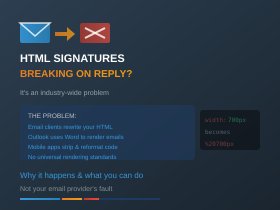
An Industry-Wide Problem With No Perfect Solution
If you’ve ever carefully designed an HTML email signature—complete with logos, formatted text, and proper spacing—only to see it fall apart when someone replies to your email, you’re not alone. This is one of the most frustrating and persistent problems in business email, and it affects virtually everyone who uses custom HTML signatures.
The bad news: there’s no complete fix. The good news: understanding why it happens can help you design signatures that degrade more gracefully, and set realistic expectations for what’s achievable.
What’s Actually Happening
When you send an email with an HTML signature, it looks perfect. But the moment the recipient hits Reply or Forward, their email client rewrites your carefully crafted HTML code to match its own internal standards.
This happens because email clients need to switch from “read mode” to “compose mode.” During this transition, they parse your HTML and rebuild it according to their own rules. Different email clients have different rules, and none of them are obliged to preserve your original formatting.
The result: images shift position, tables resize unexpectedly, spacing changes, fonts revert to defaults, and carefully aligned elements end up scattered across the page.
The Technical Problem
One particularly nasty variant of this problem involves CSS formatting and URL encoding. Here’s what can happen:
You write clean CSS like this: width:700px
An email editor or client reformats it with a space after the colon (which is standard CSS style): width: 700px
When the email is replied to or forwarded, that space gets URL-encoded: width:%20700px
Some email clients then misinterpret this as: width: 202700px (treating %20 as the number 20, concatenated with 700)
The result is that elements designed to be 700 pixels wide suddenly become over 200,000 pixels wide, completely destroying the layout.
A Real-World Example
We’ve seen this exact problem occur with corporate email signature management systems. For example, when using Hornetsecurity’s 365 Total Protection email signatures feature, the built-in HTML editor automatically reformats CSS to follow standard conventions—adding spaces after colons in style declarations.
When you paste HTML code like width:700px;font-family:’Calibri’ into the source code editor and press OK, the system reformats it to width: 700px; font-family: ‘Calibri’ with spaces added.
This isn’t a bug in Hornetsecurity—it’s the editor following standard CSS formatting conventions. The problem only manifests when recipients reply to or forward the email and their email client mishandles the spaces during the read-to-compose mode transition.
The same issue affects virtually every email signature management platform, corporate email system, and webmail editor. It’s not the fault of the signature tool—it’s a fundamental incompatibility in how different email clients handle HTML.
Why Outlook Desktop Is Particularly Problematic
While all email clients have quirks, Microsoft Outlook desktop versions (2007 onwards) are notorious for HTML email problems. This is because Outlook doesn’t use a proper web rendering engine—it uses Microsoft Word’s rendering engine instead.
Word was designed for print documents, not web pages. It has limited support for modern HTML and CSS, ignores many standard styling properties, and applies its own formatting rules that often conflict with email design best practices.
This means an email signature can look perfect in Gmail, Apple Mail, and Outlook on the web, but break completely in Outlook desktop—even when the email never leaves Microsoft’s own ecosystem.
Smartphone Email Apps Make It Worse
Mobile email apps introduce their own set of problems. When someone replies to your email from their iPhone or Android device, the app often strips out or modifies HTML elements to make the email fit on a smaller screen.
Common issues with mobile email apps include:
Image stripping. The default iOS Mail app, for example, can remove images from replies entirely, replacing them with the filename or a placeholder. You can change this in Settings > Mail > Include Attachments with Replies, but most users don’t know this option exists.
Aggressive reformatting. Mobile apps often convert HTML emails to a simplified format to save bandwidth and improve loading times. Your carefully designed multi-column layout may be collapsed into a single column, or your table-based structure may be flattened entirely.
Width and scaling issues. Mobile screens are narrow, so email apps apply their own scaling and width rules. A signature designed for a 600-pixel-wide desktop view may be squeezed, stretched, or overflowed on mobile. Some apps ignore max-width CSS properties entirely.
Different rendering engines. The Gmail app on iOS renders emails differently from the Gmail app on Android, which renders differently from Gmail in a mobile browser. Samsung’s default email app behaves differently again. There’s no consistency.
Plain text conversion. Some mobile users set their email apps to compose replies in plain text to save data or because they prefer it. When they reply to your beautifully formatted HTML email, their response strips out all formatting from the quoted content, leaving your signature as plain text.
The rise of mobile email has made the signature consistency problem significantly worse. With so many people reading and replying to emails on their phones, your signature will pass through mobile apps more often than ever—and each pass is another opportunity for the formatting to break.
It’s Not Your Email Provider’s Fault
If you use an email security or signature management service, you might assume they’re causing the problem when your signatures break. In most cases, they’re not.
The issue is fundamental to how email clients handle HTML. There are no universal standards for email rendering the way there are for web browsers. Each email client—Outlook, Gmail, Apple Mail, Yahoo, and dozens of others—makes its own decisions about how to interpret and modify HTML code.
This has been a known problem in the email industry for over two decades. Email developers and designers have long accepted that “very little can be done to completely avoid changes to your design when subscribers hit the forward button.”
The Hard Truth
If your signature uses a complex layout—multiple columns, precisely positioned logos, nested tables, background colours—there is no reliable way to preserve that formatting through the reply/forward process. The only signatures that survive intact are plain text or very simple HTML with minimal styling.
Redesigning a signature to be “reply-proof” essentially means stripping out most of what makes it look professional in the first place. For most businesses, this isn’t a worthwhile trade-off.
Setting Realistic Expectations
The most important thing is to set realistic expectations. Your HTML email signature will probably look different—and possibly broken—after it’s been replied to or forwarded a few times. This is normal, and it happens to everyone.
What matters most is how your signature looks when the recipient first receives your email. That’s your chance to make a professional impression. By the time an email thread has been bounced back and forth several times, formatting inconsistencies are expected and generally forgiven.
Focus your design efforts on that initial impression, accept that degradation will happen in replies, and don’t waste time chasing a perfect solution that doesn’t exist.
Last updated: March 2026