We’ve seen three successful attacks this year where users had MFA enabled and still got compromised. Here’s how it works and what you can do about it.
Multi-factor authentication is one of the most important security controls you can implement. Microsoft says it blocks over 99% of credential-based attacks. We enforce MFA for every user, on every account, with no exceptions.
But MFA isn’t bulletproof. This year alone, we’ve seen three successful attacks against Microsoft 365 accounts where the users had MFA enabled and working correctly. They entered their password, they completed the MFA challenge, and the attackers still got in.
This isn’t a theoretical vulnerability. It’s happening right now, and many IT professionals don’t fully understand how it works. This article explains the attack, why it succeeds, and what we’re doing to protect against it.
How Microsoft 365 Authentication Actually Works
To understand the attack, you need to understand what happens when you log into Microsoft 365.
When you enter your username and password, then complete the MFA challenge (approving a push notification, entering a code from your authenticator app, or whatever method you use), Microsoft doesn’t give you a permanent pass into your account. Instead, it issues you a token—a piece of data that proves you’ve successfully authenticated.
This token gets stored in your browser as a cookie. For as long as that token is valid, you can access your email, SharePoint, Teams, and other Microsoft 365 services without having to log in again. That’s why you don’t have to enter your password every time you open Outlook.
The token contains information about who you are, what permissions you have, and when it expires. It’s essentially a digital badge that says “this person has already proven their identity.”
Here’s the problem: if someone else gets hold of that token, they can use it to access your account. They don’t need your password. They don’t need to complete MFA. The token already proves that all of that happened. They just need the token itself.
The Attack: Adversary-in-the-Middle
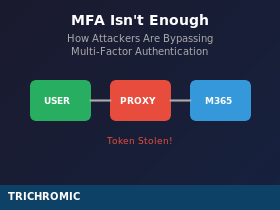
The most common way attackers steal these tokens is called an adversary-in-the-middle (AiTM) attack, sometimes called a reverse proxy attack. Tools like Evilginx have made this attack accessible to criminals who don’t need to be particularly sophisticated.
Here’s how it works:
- The phishing email. You receive an email that looks legitimate—a shared document notification, a payment reminder, a meeting invitation. It contains a link that appears to go to Microsoft.
- The fake login page. The link takes you to what looks exactly like the Microsoft login page. It has the Microsoft branding, the familiar layout, even a valid HTTPS padlock. But you’re not actually on Microsoft’s site—you’re on the attacker’s server.
- The invisible relay. When you enter your username and password, the attacker’s server immediately sends those credentials to the real Microsoft login page. Microsoft responds with the MFA challenge, which the attacker’s server passes back to you. You see the normal MFA prompt and approve it.
- The token theft. You’ve now successfully authenticated with Microsoft—through the attacker’s server. Microsoft issues the authentication token, but instead of going directly to your browser, it passes through the attacker’s server first. They capture a copy of the token before forwarding it to you.
- The compromise. You arrive at your inbox, none the wiser. Everything looks normal because you are genuinely logged in. But the attacker now has a copy of your valid session token. They can import it into their own browser and access your account as if they were you—no password required, no MFA challenge, because the token already proves authentication happened.
Why This Attack Is So Effective
This attack works because it doesn’t try to bypass MFA—it lets you complete MFA successfully and then steals the result.
The fake login page looks identical to the real one because it essentially is the real one. The attacker’s server fetches the genuine Microsoft login page and relays it to you, pixel for pixel. All the scripts, styles, and dynamic prompts come from Microsoft itself. There’s nothing visually wrong to spot.
The URL will be wrong—it won’t be login.microsoftonline.com—but attackers use domains that look plausible at a glance, and many people don’t check the URL carefully. The page has a valid HTTPS certificate (attackers can get free certificates from Let’s Encrypt), so the padlock is there.
From the user’s perspective, nothing goes wrong. They log in normally, see their inbox, and carry on with their day. They have no idea their session has been compromised.
What Happens After the Attack
Once attackers have the token, they typically act quickly. Common actions include:
Creating inbox rules. They set up rules to forward emails to an external address, or to automatically delete security notifications so you don’t see alerts about suspicious activity. It’s not just the normal server-side rules either—if Out of Office is enabled, there are additional rule capabilities that most people don’t know exist, and attackers exploit this.
Adding new MFA devices. If they can access the security settings, they may register their own authenticator app, giving them persistent access even after the stolen token expires.
Business email compromise. With access to your email, they can impersonate you. They might change bank details on an invoice going to your customers, or request payments from your suppliers. This is where the real financial damage happens.
Lateral movement. Your email might contain credentials for other systems, or access to shared resources that let them compromise additional accounts.
How These Attacks Can Be Detected
Because the user successfully authenticates with MFA, the attack doesn’t trigger the usual “failed login” alerts. Detection requires looking for other signs.
Impossible travel. The legitimate login happens from the user’s normal location. When the attacker replays the token from a different location—often another country entirely—we see the same account active in two places that are geographically impossible to travel between in the time elapsed. A login from London followed by activity from Eastern Europe two minutes later is a red flag.
Anomalous token behaviour. Microsoft’s identity protection can detect when a token is being used in unusual ways—different IP address, different device fingerprint, different browser.
Suspicious inbox rules. New forwarding rules or rules that delete certain messages are a classic sign of compromise.
New MFA device registration. If a new authenticator app is added to an account unexpectedly, that’s worth investigating immediately.
Here’s the frustrating reality: Microsoft provides dashboards and tools that can help with some of this detection, but many of the more useful features require additional licensing—Entra ID P2, Defender for Cloud Apps, Defender for Office 365. The basic Microsoft 365 Business plans don’t include the advanced threat detection that would make catching these attacks easier. You can review sign-in logs manually, but doing this thoroughly for every account every day isn’t realistic for most small IT teams.
This is an area where automation would help—scripts or tools that check for impossible travel, new inbox rules, and MFA changes across all accounts and flag anomalies. Building and maintaining that automation takes time, but it’s more sustainable than manual daily reviews.
What Can Be Done to Prevent It
There’s no single solution that completely eliminates this risk, but several measures can help reduce it.
Phishing-resistant MFA. Hardware security keys (like YubiKeys) and passkeys are genuinely resistant to this attack. Unlike push notifications or authenticator codes, they cryptographically verify they’re talking to the real domain before authenticating. A phishing proxy can’t intercept this because the key simply won’t respond to a fake domain—it doesn’t matter how convincing the page looks. The downside is cost and practicality: hardware keys aren’t cheap when you’re equipping an entire organisation, and not every user or every device supports passkeys yet.
Conditional access policies. Restricting access to managed devices, known locations, or compliant devices makes stolen tokens harder to use. If the attacker’s device doesn’t meet the policy requirements, the token alone won’t be enough. However, the more powerful conditional access features require Entra ID P1 or P2 licensing—more cost on top of your existing Microsoft 365 subscriptions.
Token protection. Microsoft offers token protection (currently in preview) that binds tokens to specific devices. A token stolen from one device won’t work on another. This is promising but not yet complete—it currently only works for native apps, not browser access, which is exactly where most of these attacks happen.
Shorter session lifetimes. Reducing how long tokens remain valid limits the window attackers have to use them. This creates friction for users (more frequent logins), so it’s a balance.
User awareness. Training users to check URLs before entering credentials helps, but it’s not reliable. The attacks are sophisticated, the fake pages are convincing, and people are busy. Technical controls are more dependable than expecting users to spot every phish.
The frustrating theme here is that many of the better protections either cost more money (Microsoft licensing), require hardware investment (security keys), or aren’t fully baked yet (token protection preview). Microsoft’s security dashboards are great at telling you what you should enable—less great at mentioning that half of it requires upgrading to more expensive licences.
The Bigger Picture
MFA is still essential. The 99% of attacks it blocks are real attacks that would otherwise succeed. Turning off MFA because it’s not perfect would be madness.
But MFA is not the end of the security conversation. It’s one layer of defence, and sophisticated attackers have found ways around it. The industry is responding with phishing-resistant authentication methods, token binding, and better anomaly detection, but these protections are still maturing and not universally deployed.
In the meantime, the best defence is layered security: strong authentication, device compliance where possible, conditional access, and the ability to respond quickly when something looks wrong. No single control stops everything. The goal is to make attacks harder and limit the damage when they do succeed.
For MSPs and IT teams without the resources to manually review logs every day, automation is the realistic path forward. PowerShell and the Microsoft Graph API can be used to build scripts that check for the warning signs: impossible travel (sign-ins from geographically distant locations in short timeframes), new inbox rules across all mailboxes, unexpected MFA device registrations, and anomalous sign-in patterns. These scripts can run on a schedule and alert you only when something needs attention—turning an impossible daily task into a manageable automated check.
We’re actively exploring this kind of automation ourselves. It’s not a solved problem, but it’s the kind of tooling that small IT teams need to have any chance of catching these attacks without drowning in manual work.
How Trichromic Can Help
At Trichromic, we manage Microsoft 365 security for our clients as part of our ongoing service. That includes enforcing MFA, configuring conditional access policies where licensing allows, and responding quickly when we become aware of suspicious activity.
We’re also looking at better ways to automate the detection of these attacks—checking for impossible travel, suspicious inbox rules, and unexpected MFA registrations across all the accounts we manage. It’s an ongoing challenge, but it’s the kind of thing that needs to happen given how these threats are evolving.
If you’re concerned about whether your current security posture is adequate, or if you’ve experienced a suspected compromise, get in touch. Call us on 020 3327 0310.
Security isn’t a product you install. It’s an ongoing process of monitoring, responding, and adapting to new threats—and being honest about what’s realistic given the time and budget available.




