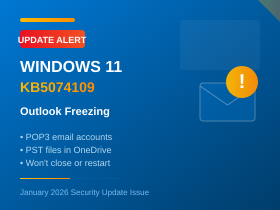
January 2026 Security Update KB5074109 Causing Problems for POP3 Email Users
Summary: The Windows 11 January 2026 security update (KB5074109) is causing Outlook to hang, freeze, or fail to close properly—particularly affecting users with POP3 email accounts and PST files stored in OneDrive. If you’re experiencing these issues, read on for workarounds.
What’s Happening?
Microsoft released the January 2026 security update (KB5074109) on 13th January for Windows 11 versions 24H2 and 25H2. This updates your system to build 26100.7623 or 26200.7623.
Shortly after release, users began reporting problems with classic Outlook (the desktop version, not the new Outlook app). Microsoft has acknowledged the issue and is investigating, but a fix has not yet been released.
Symptoms You Might Experience
If you’re affected by this issue, you may notice one or more of the following:
- Outlook hangs or freezes during normal use—opening folders, sending emails, or accessing your mailbox
- Outlook won’t close properly —you close it, but it continues running in the background
- Outlook won’t restart —after closing, you can’t open it again without restarting your computer or manually ending the Outlook process in Task Manager
- Sent emails don’t appear in Sent Items —messages are delivered but not recorded in your Sent folder
Who’s Affected?
The issue primarily affects users with:
- POP3 email accounts configured in classic Outlook
- PST files stored in OneDrive (this combination seems particularly problematic)
- Windows 11 24H2 or 25H2 with the KB5074109 update installed
If you use Exchange, Microsoft 365 mailboxes, or IMAP accounts, you may not be affected—though some users with these configurations have also reported issues.
How to Check If You Have This Update
To confirm whether KB5074109 is installed:
- Press Windows key + R to open the Run dialog
- Type winver and press Enter
- Look at the version number—if it shows 26100.7623 or 26200.7623, you have the problematic update
The Fix: Move PST Files Out of OneDrive
Microsoft is investigating but has not yet released an official fix. In our experience, the update cannot be uninstalled through normal means—the uninstall option either fails or the update simply reinstalls itself.
The solution that works is to move your PST files out of OneDrive to a local folder. If your PST files are stored in a OneDrive-synced folder (which is common if your Documents folder is synced), moving them to a non-synced location resolves the issue.
How to Move Your PST Files
- Close Outlook completely — check Task Manager (Ctrl + Shift + Esc) to make sure Outlook isn’t running in the background. If it is, select it and click ‘End task’
- Find your PST file(s) — they’re often in your Documents folder or an Outlook Files subfolder. Look for files with the .pst extension
- Create a local folder that isn’t synced to OneDrive, such as C:\OutlookData\ or C:\Users\YourName\OutlookLocal\
- Move (don’t copy) your PST file(s) to the new local folder
- Open Outlook — it may prompt you to locate the PST file. Browse to the new location and select it
- Test — send yourself a test email, close Outlook, and reopen it to confirm the issue is resolved
Tip: Make sure the new folder location is included in your regular backup routine. PST files outside of OneDrive won’t be automatically synced to the cloud, so they need to be backed up separately.
Why This Happens
PST files and OneDrive have never been a great combination. PST files are database files that Outlook constantly reads from and writes to. OneDrive tries to sync changes as they happen, but PST files change so frequently that sync conflicts and locking issues can occur. The KB5074109 update appears to have made this incompatibility significantly worse.
Microsoft has actually advised against storing PST files in OneDrive, SharePoint, or other cloud-synced folders for years—but many users end up with PST files in OneDrive anyway, especially if their entire Documents folder is synced.
Quick Fix: Outlook Won’t Open Because It’s “Already Running”
If you’ve closed Outlook but can’t reopen it because Windows thinks it’s still running:
- Press Ctrl + Shift + Esc to open Task Manager
- Look for Microsoft Outlook in the list (check under both Apps and Background processes)
- Select it and click End task
- Try opening Outlook again
This is a temporary workaround—you’ll need to do this each time the issue occurs until Microsoft releases a proper fix or you apply one of the other workarounds above.
Other Issues with KB5074109
The Outlook issue isn’t the only problem with this update. Users have also reported:
- Brief black screen flashes on some systems
- Desktop wallpaper resetting to black
- Azure Virtual Desktop and Windows 365 authentication issues
- File Explorer ignoring custom folder names (desktop.ini LocalizedResourceName)
If you’re experiencing multiple issues, uninstalling the update may be the best course of action until Microsoft releases a corrected version.
What We’re Doing
We’re monitoring the situation and will apply the fix to managed systems as soon as Microsoft releases one. For clients experiencing issues now, we can help you implement the workarounds safely or assess whether uninstalling the update is appropriate for your situation.
If you’re affected and need assistance, please get in touch.
Last updated: 20th January 2026. We will update this article when Microsoft releases a fix.




